PRSI
Pay Related Social Insurance (PRSI) contributions are collected by Revenue on behalf of the Department of Social Protection (DSP), and used by the Social Insurance Fund to help pay pensions and Social Welfare benefits. Most employees and their employers are required to pay PRSI; however, certain exclusions do apply. A detailed explanation of the various aspects of PRSI can be found on the government's website here.
Calculating PRSI
PRSI contributions are calculated on an employee's gross income, known as their reckonable earnings. The contribution rates for employees and employers are determined by the employee's PRSI class; the different classes and their applicable contribution rates can be found here.
SimplePay currently supports four of the 11 classes: A, S, J, and M. The system divides PRSI class A into two groups: A (Normal) for sub-classes AO, AX, AL and A1, and A (Community Employment) for sub-classes A8 and A9.
The PRSI class for an employee can be configured on each employee's Basic Info screen. It is, therefore, important that your employees are set up correctly on the system.
From the 2016 tax year, a PRSI credit was introduced for class A. This credit reduces an employee's PRSI liability and is determined by the employee's gross earnings, decreasing incrementally as the gross earnings increase. The calculation and application of this credit are discussed in the PRSI Contribution Rates and User Guide.
Once-off payslips
If a once-off payslip is added during a pay period, the system will combine the gross income from this once-off payslip with the gross income from the regular payslip. This combined total is then used to calculate the PRSI contribution for that pay period. This may push the employee into a higher PRSI sub-class and could result in a higher PRSI contribution than expected.
Viewing Calculated PRSI Weeks
You will be able to view the calculated PRSI weeks for employees in three different places:
-
Payslip summary card:
- Go to Employees, and select the relevant employee.
- On the Payroll tab, hover over the info icon next to PRSI – Employee in the Payslip summary card. See the screenshot below:
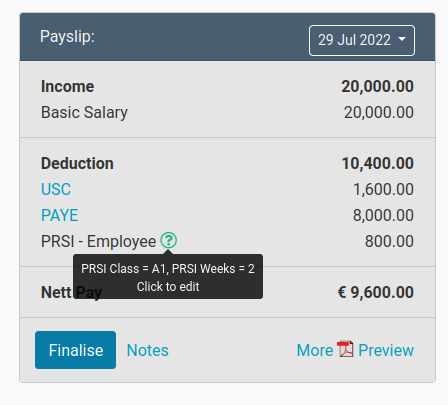
PRSI Class and PRSI Weeks
The PRSI Class and PRSI Weeks displayed when hovering over the info icon are applicable to that payslip period. If the employee is paid weekly or fortnightly (every 2 weeks), the corresponding number of weeks will reflect (i.e. 1 or 2). For employees paid monthly, the submission should include 4 or 5 weeks' contributions. The PRSI Weeks is not a year-to-date figure.
Please see the section below if you need to override the PRSI Weeks.
-
Bulk Actions:
- Go to Employees > Bulk Actions, and click on PRSI Weeks Override under Payroll Inputs.
-
Regular Submissions:
- Go to Filing > Regular Submissions.
- Find the relevant date, and click on the Excel link to download the submission file.
- Open the file, and view the PRSI Insurable Weeks under PRSI Class Details.
Overriding a PRSI Week
You will be able to override a PRSI Insurable Week in instances where the number of calculated weeks does not accurately reflect the actual number of PRSI weeks that an employee has worked.
To do this:
- Go to Employees, and select the relevant employee.
- Ensure that you have selected the relevant payslip period next to Payslip.
- Click the Info icon next to PRSI – Employee.
- Click the Override link on the Edit PRSI Weeks page.
-
Enter the number of PRSI weeks for this pay period.
Override
This override must be used only if you are certain that a change to the calculated PRSI weeks is required. Please contact the Department of Social Protection (DSP) if you are uncertain.
-
Click Save.
Overriding PRSI Weeks in Bulk
You will also be able to edit PRSI weeks in bulk. To do so:
- Go to Employees > Bulk Actions, and click on PRSI Weeks Override under Payroll Inputs.
More information on Bulk Actions is available here.
Reporting PRSI
Employers must report PRSI income and contributions each pay period as part of their electronic submissions to Revenue. These submissions must be done for each pay period on or before the date on which employees receive payment. More information on the submission process can be found here.
PRSI Exempt vs PRSI Class M
There is a difference between employees who are PRSI Exempt and employees who do not contribute PRSI as they are in PRSI Class M. Do not mark an employee as PRSI Exempt if they have been assigned a PRSI class. An employee cannot belong to a PRSI class and also be PRSI Exempt.
You can indicate the class or PRSI exemption of an employee under Basic Info. More information about completing an employee's Basic Info is available here.
The following employees could be PRSI exempt:
- Persons issued with an E101 Certificate / A1 Portable Document as migrant workers within the EU or non-EU nationals on temporary assignment to Ireland.
- Persons issued with a Certificate of Coverage from a country with which Ireland has a bi-lateral Social Security Agreement on temporary assignment to Ireland.
- Persons issued with a PRSI Exemption Certificate from the Special Collections Section.
The following employees are usually classified as belonging to PRSI Class M:
- Employees under the age of 16.
- People aged 66 or over (including those previously liable for Class S).
- Persons in receipt of occupational pensions or lump-sum termination payments.
PRSI Class J
As of 1 January 2024, the following table should be used to determine whether an employee over the age of 66 years should be placed in PRSI Class J:
| PRSI Class | Person Born Before/After 1 January 1958 | Current PRSI Class under age 66 | Current PRSI Class after age 66 | From 1 January 2024, contributors aged between age 66 & 70 and who have not been awarded SPC | From 1 January 2024, contributors aged between age 66 & 70 and who have been awarded SPC | PRSI Class Post Age 70 |
|---|---|---|---|---|---|---|
| A | Before | A | J | J | J | J |
| After | A | J | A | J | J | |
| S | Before | S | M | M | M | M |
| After | S | M | S | M | M |
PRSI Class S
If you select "S" as an employee's PRSI Class under Basic Info, an Annual Income is Below Class S PRSI Threshold checkbox will appear. Check this box to mark PRSI Class S employees who earn less than the annual threshold as not qualifying for PRSI. You can look here for the latest information regarding the annual threshold.
Annual Income is Below Class S PRSI Threshold checkbox
- Ticking this box does not exempt the employee from PRSI. They will not be reported as PRSI exempt. Instead, PRSI contributions of € 0 will be reported.
- Note the on-screen message carefully: it is your responsibility, as the employer, to tick or untick the box if the threshold or the employee's income changes.